 Ikuna
To create a workspace in Ikuna MacOS, click New Space, keep the apps and windows you want, name it, and save. After that, one click on the workspace reopens those apps and puts their windows back where you left them.
Ikuna MacOS is a Mac workspace and session manager from BRNSFT. It isn't a tiling window manager. It saves a whole setup, like "Coding", "Meetings", "Creative" or "Relax", so you can move between roles without rebuilding your desk every time. This guide follows the 3-minute walkthrough below.
This walkthrough shows the interface recorded in the source video. Some labels and settings have changed in current versions. The screenshots below are real frames from that recording, cropped for readability, not recreated product UI.
Before you start
- macOS 13 (Ventura) or later, on Apple Silicon or Intel.
- Download Ikuna from ikuna.app.
- Ikuna needs Accessibility access, and it will ask to control (Automation) the apps it restores. Input Monitoring and Start at Login are optional.
- The Free plan includes 4 workspaces. Pro costs €9/month or €70/year.
1. Set up your apps the way you want them
Open the apps and windows you use for this kind of work, and arrange them across your screens. Ikuna saves what's open when you create the space.
2. Click "New Space"
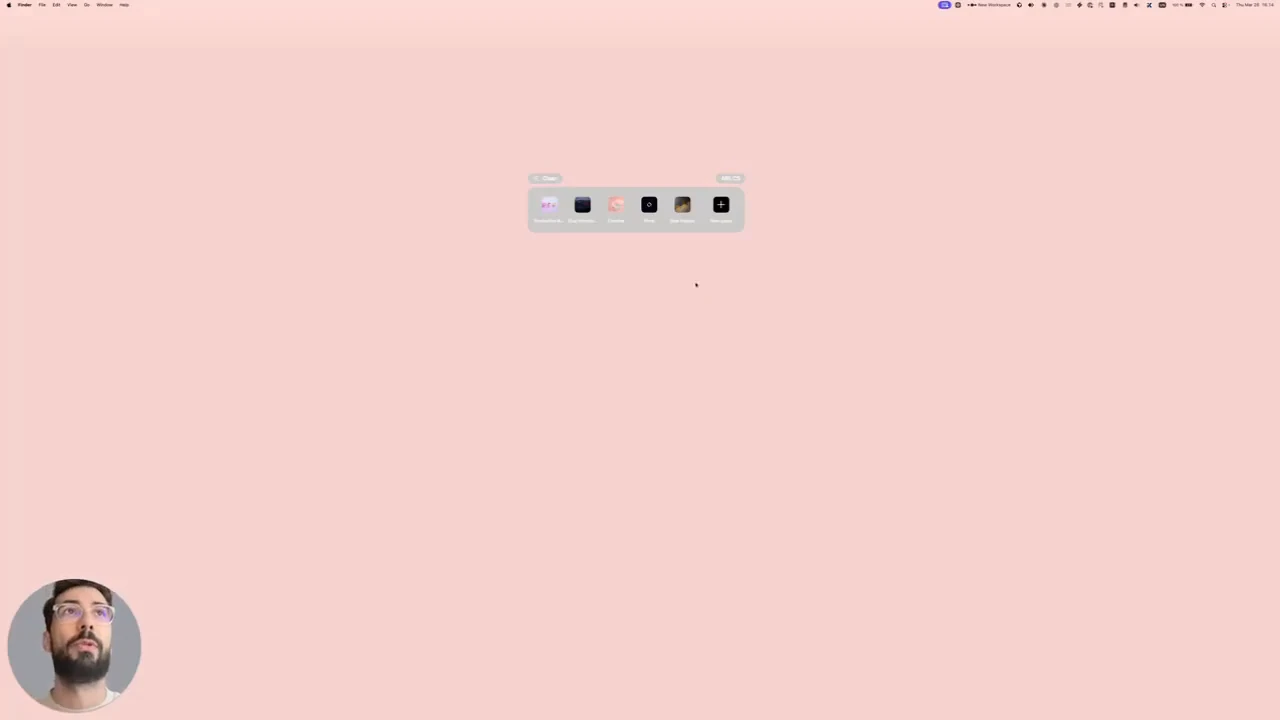
On the Ikuna main screen, click New Space. Ikuna loads the apps you have open right now.
3. Choose which apps and windows to keep
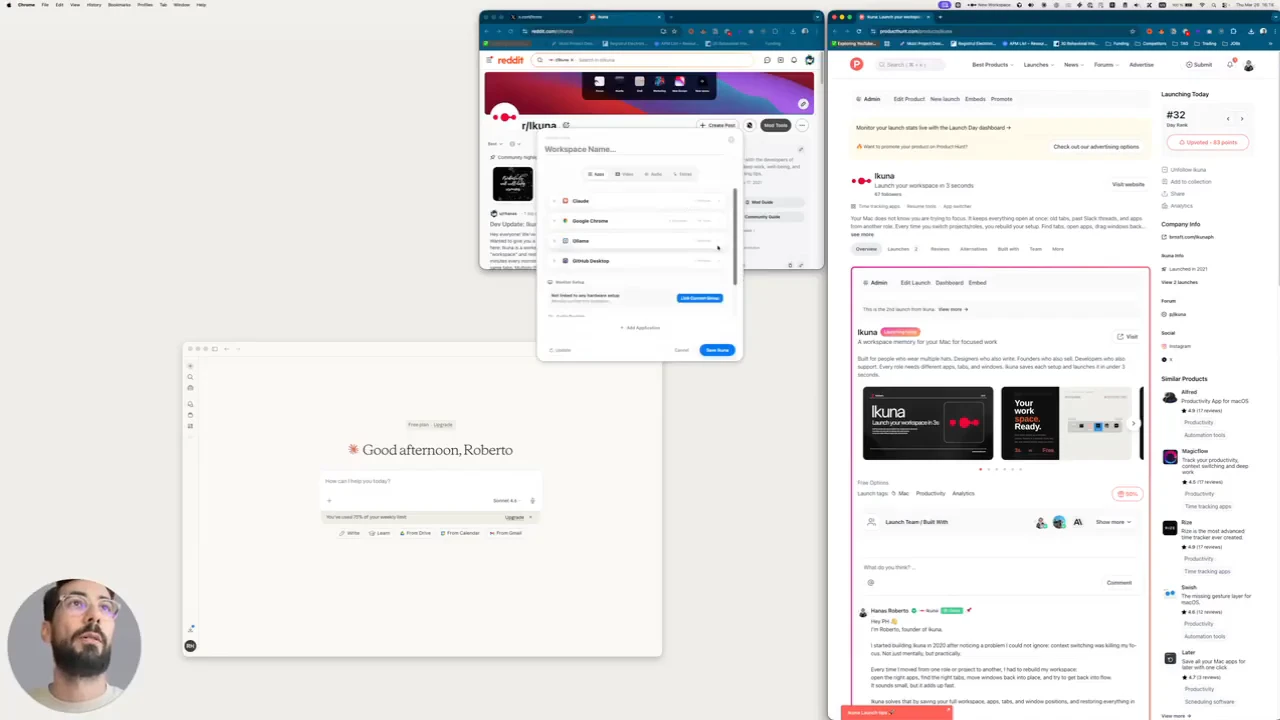
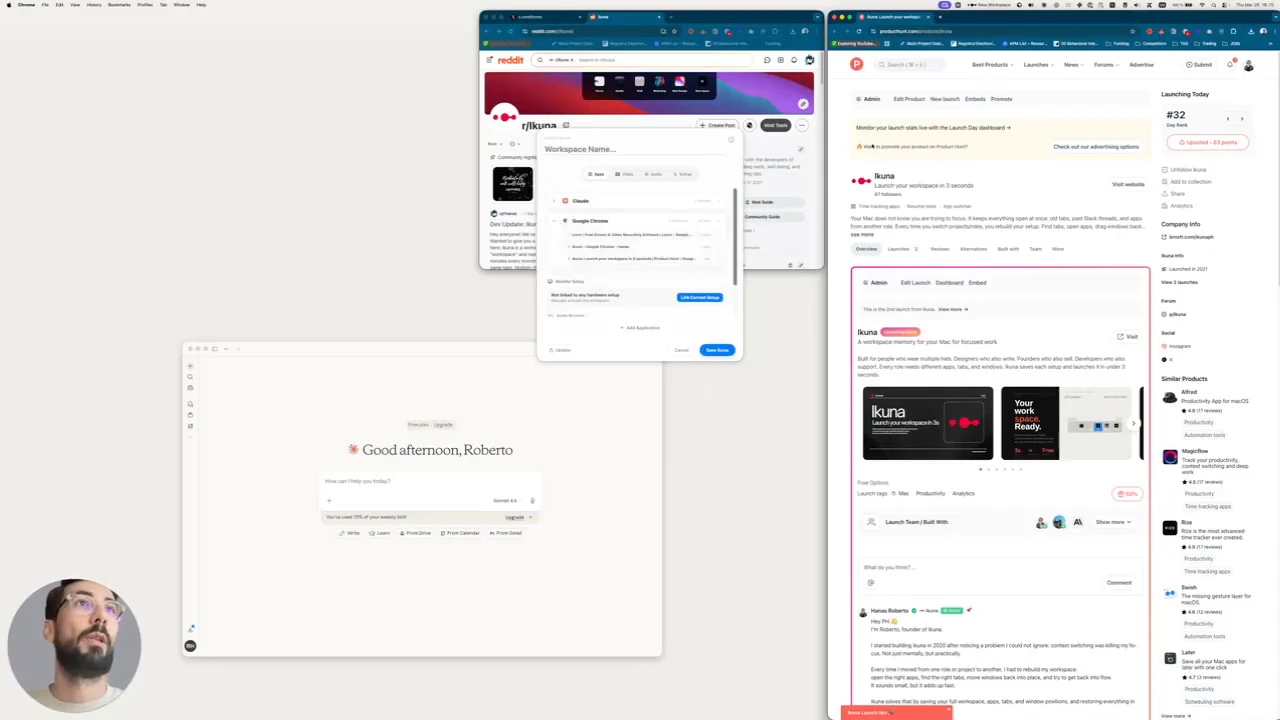
Remove any apps you don't need for this space, like your code editor or developer tools. You can also choose individual windows. In the video, Roberto has three Chrome windows and removes the one on another screen, so it won't launch.
Ikuna reopens and positions all your apps. Browser tabs, Finder, terminals, Zed and TextEdit are extras on top of that.
4. (Optional) Turn on Display Trigger
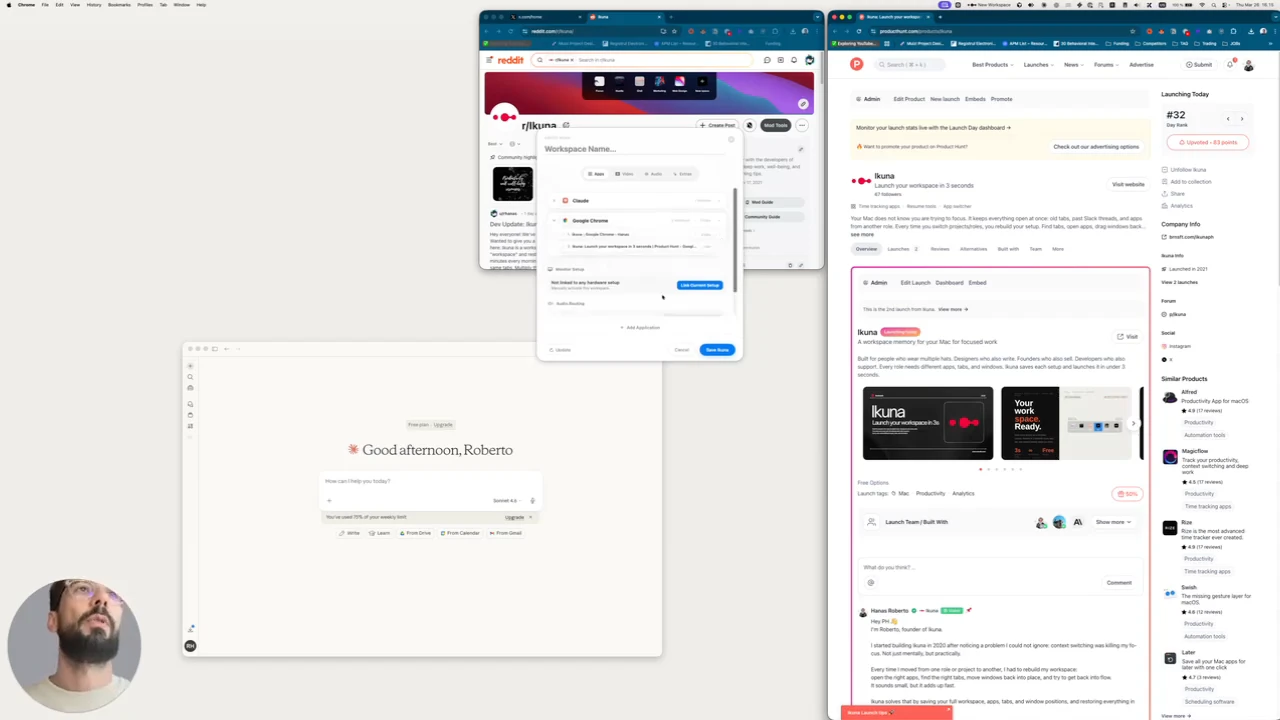
With Display Trigger, a workspace runs automatically when its linked display setup is connected. In current versions, link your display setup and enable monitor auto-activation in settings. In the video, it's an HDMI monitor.
5. Name it and add a video or audio cue
Give the workspace a name. Roberto calls his "Product Hunt". You can add a short video that plays as the workspace opens, and an audio cue. An audio cue can play for 10, 15 or 30 seconds, or with no time limit. In the video, the audio is set to 10 seconds and fades out. Both cues are optional, and you can stop them at any time. Video and audio rituals are Pro features; you can skip them when creating a Free workspace.
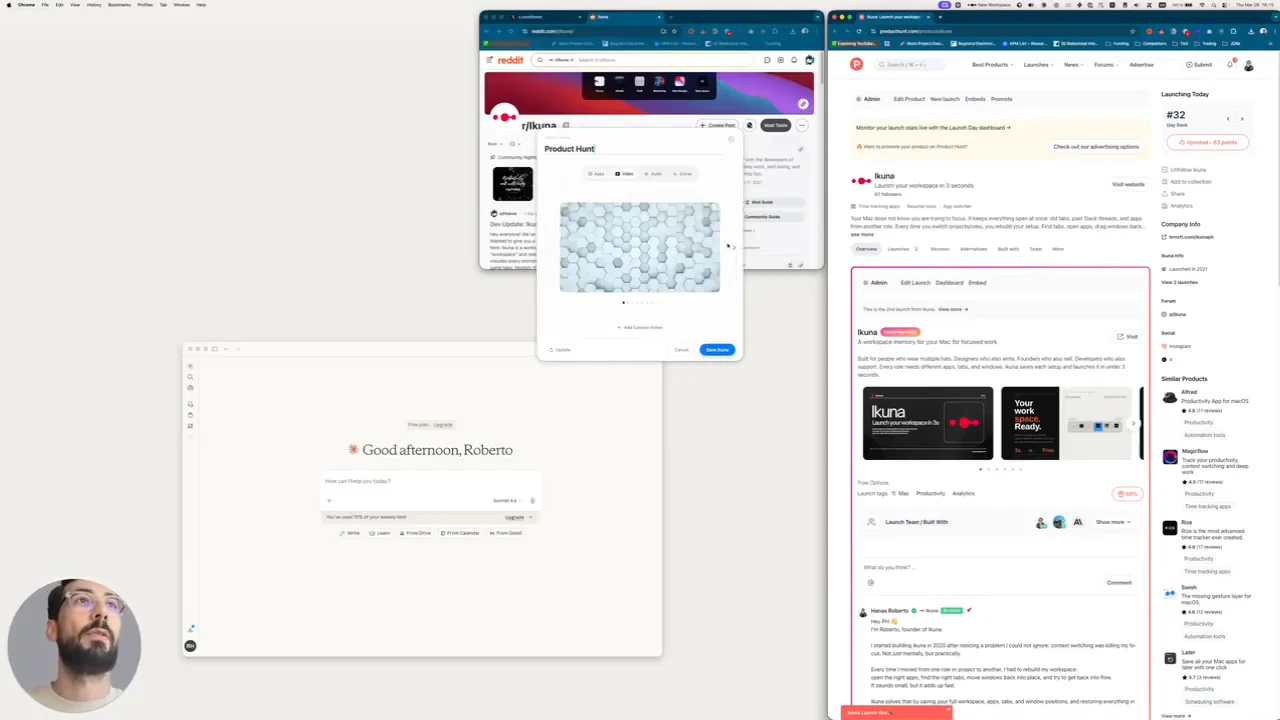
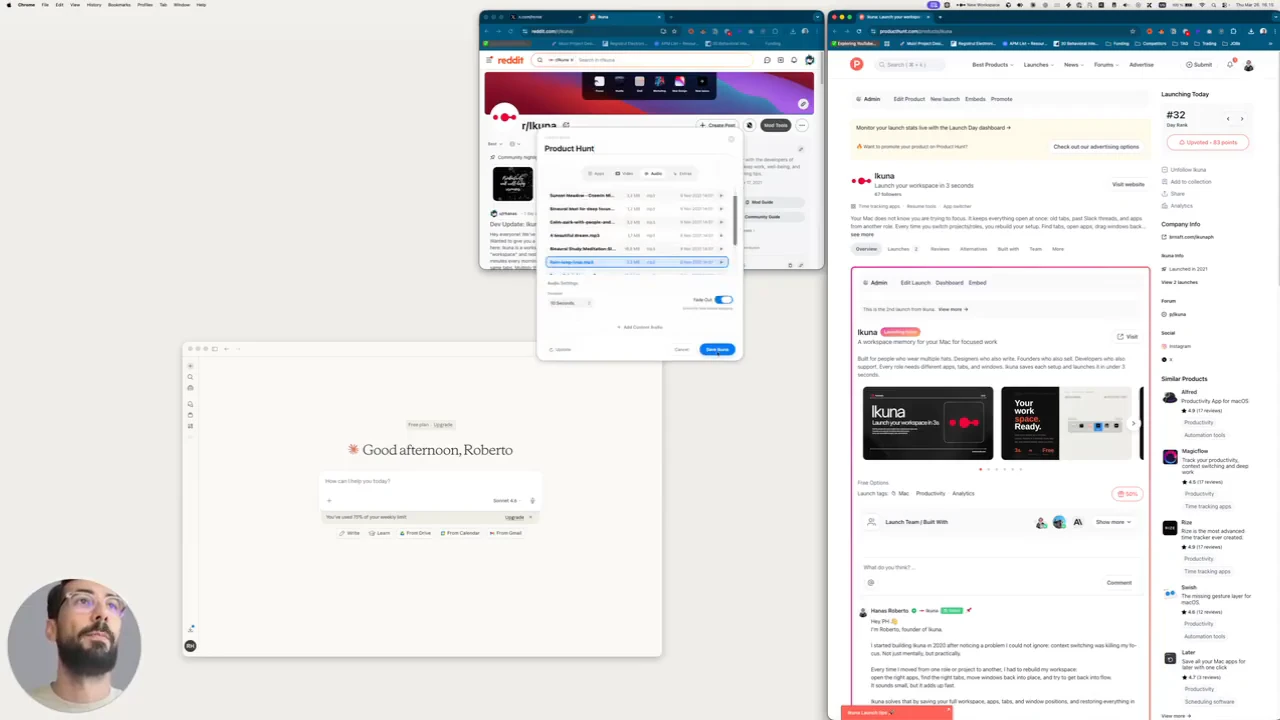
Then click Save.
6. Launch the workspace
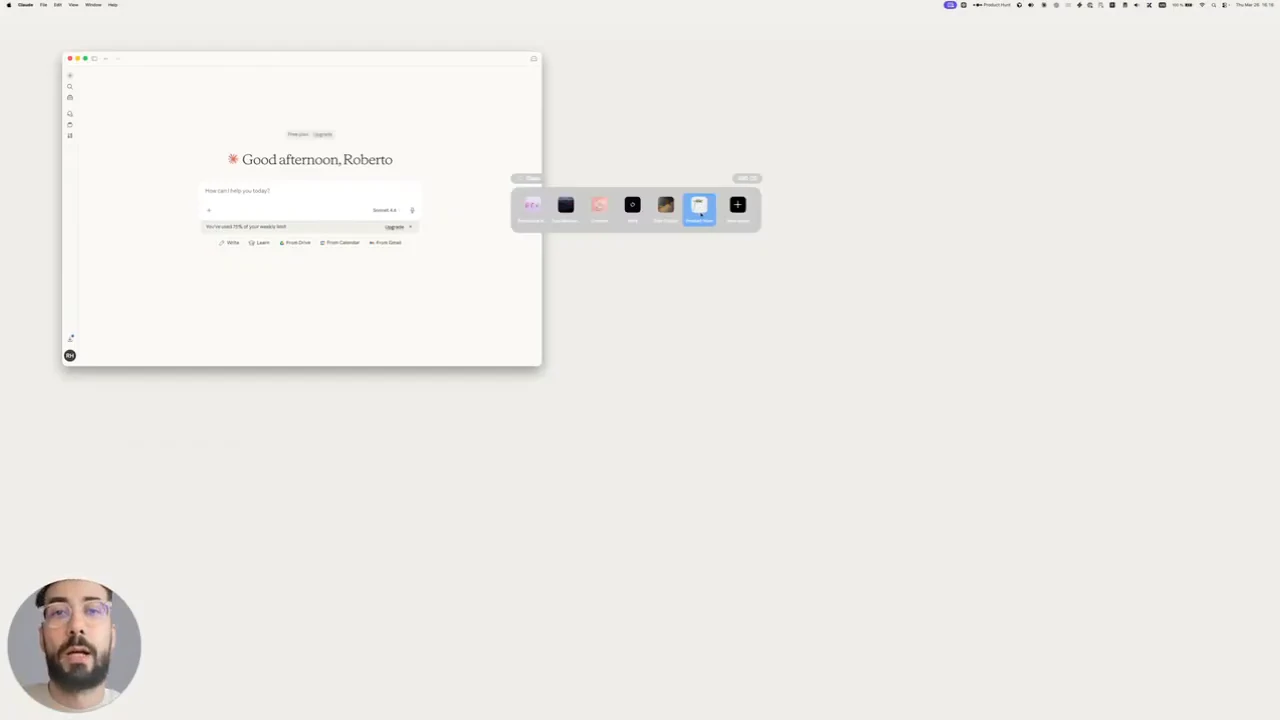
Close or move your windows, then click the workspace. Ikuna plays your cue (if you set one), reopens the apps and moves each window into place.
7. Clean up or save changes
When you're done, you have two options:
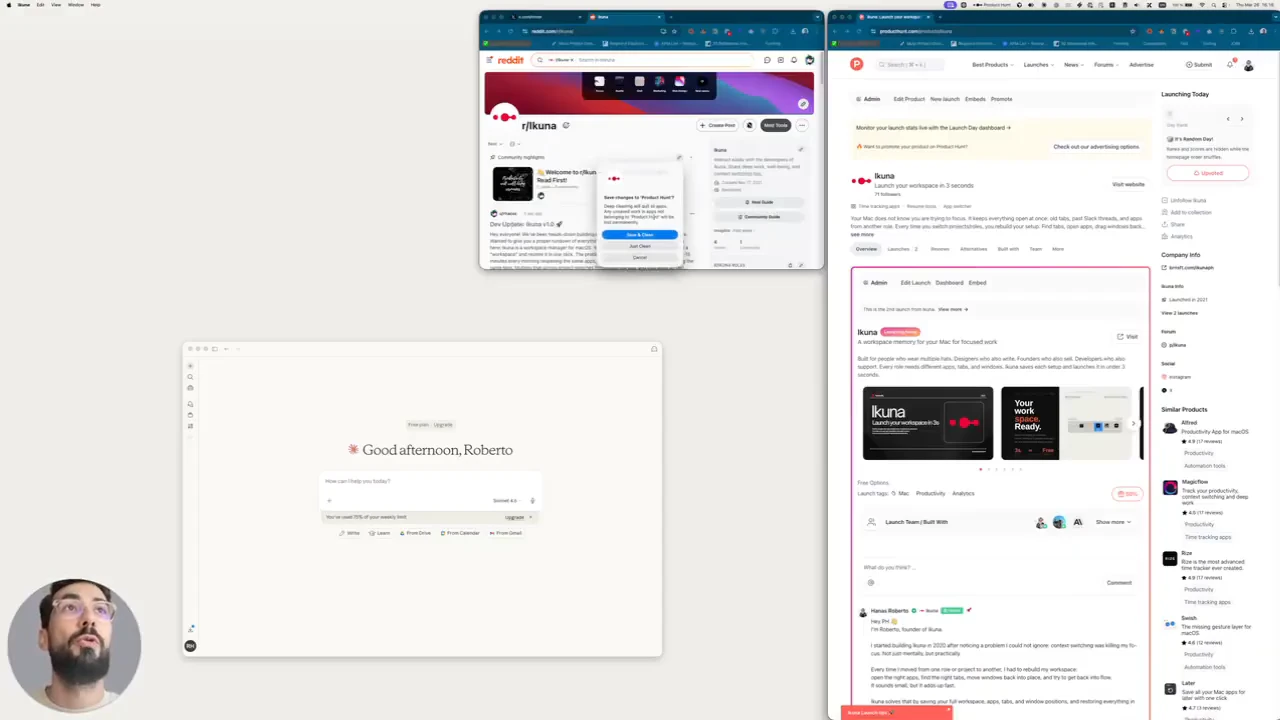
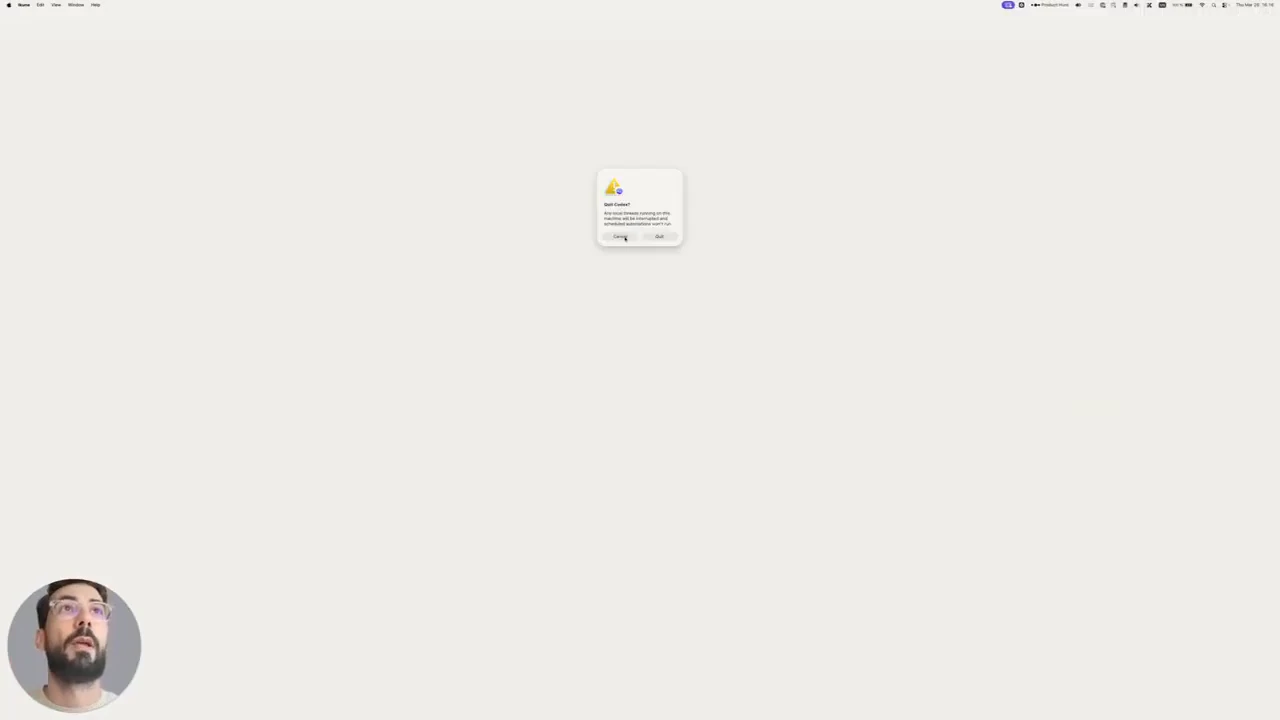
- Clean closes the workspace's apps. Ikuna asks before it quits anything.
- Save and Clean first updates the workspace with your current layout, then closes it.
8. Check your dashboard
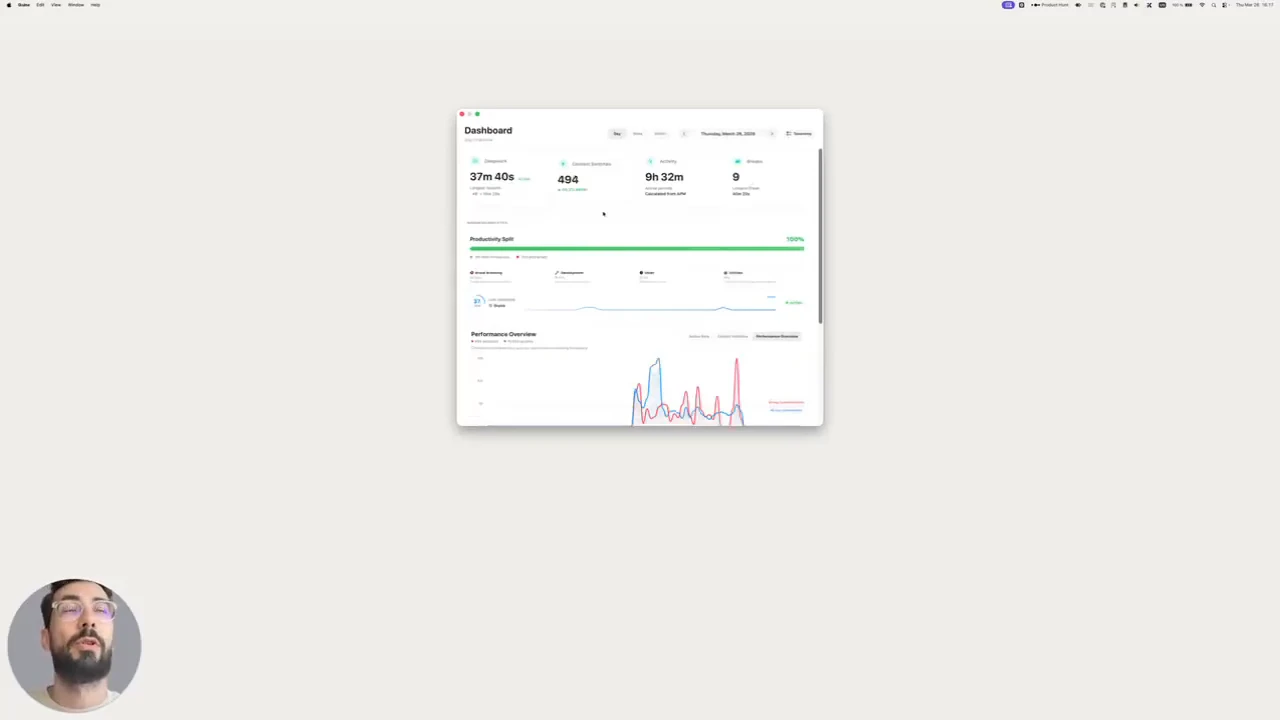
The dashboard is included on the Free plan. Its basic counters cover Deep work, Context switching, Activity time and Breaks. Current versions label the middle two counters "Context Switches" and "Active Time". The extra charts shown in the video belong to the full Pro dashboard.
Restarts
Saved workspaces survive restarts: turn on Start at Login, then one click reopens your apps and puts their windows back. There is no crash recovery.
FAQ
Can I choose specific windows, not just apps? Yes. When you create a space, you can remove individual windows. For example, you can keep two Chrome windows and leave out a third.
How do I update a workspace after I change my layout? Use Save and Clean. It saves your current layout to the workspace before closing it.
Will Clean quit my apps without asking? No. Ikuna asks before it quits anything, and you can cancel.
What permissions does Ikuna need? Accessibility, plus permission to control (Automation) the apps it restores. Input Monitoring and Start at Login are optional.
How many workspaces can I make for free? The Free plan includes 4 workspaces. Pro (€9/month or €70/year) removes that limit.